Before you start
Have your Deriv login details and phone ready. You’ll need an authenticator app to complete the setup.
Set up 2FA
Turn on 2FA in 3 steps
Many account takeovers start with a stolen password or a hacked email inbox. Two-factor authentication adds a second layer of protection to your Deriv login.
1.Download an authenticator app
Install an authenticator app on your phone, such as Google Authenticator, 1Password, or Authy.
2.Open your Deriv security settings
Log in to Deriv and go to Account settings > Security > Two-factor authentication.
3.Scan the QR code and confirm
Open your authenticator app and scan the QR code shown in Deriv. Enter the 6-digit code your app shows to finish setup.
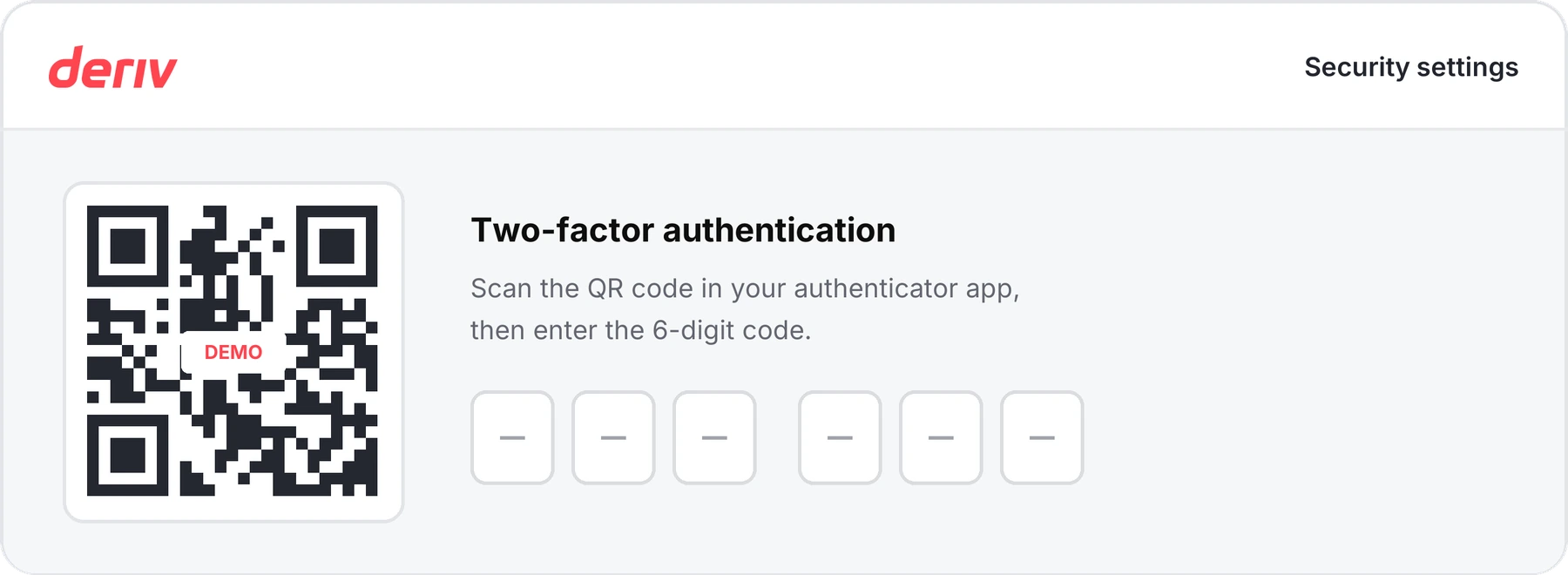
Illustration only. Your actual screen may differ. This QR pattern is a non-functional placeholder.
From now on, you’ll enter a new code each time you log in. Never share this code with anyone.
Make 2FA part of your login
If someone gets into your account before you’ve set up 2FA, they can turn it on with their own phone and lock you out. Set it up yourself, and never share your 6-digit code, even with someone who says they’re from Deriv.
Common questions
Need help?
FAQ


